
Pomotroid Themes Gallery
Personalize your focus timer. Browse our collection of community-created color schemes. Simply copy the JSON and paste it into your config.
Which Color Matches Your Brain?
Colors influence your mood, energy levels, and ability to concentrate. Choosing the right Pomotroid theme can actually boost your productivity.
Cool Tones for Calm
Best for: High-stress tasks, coding, debugging.
Blue and cyan wavelengths are scientifically proven to lower heart rate and promote a state of “flow.” If you often feel anxious about deadlines, try the Nord or Minty Fresh themes to induce tranquility.
Warm Tones for Energy
Best for: Brainstorming, creative writing, tight deadlines.
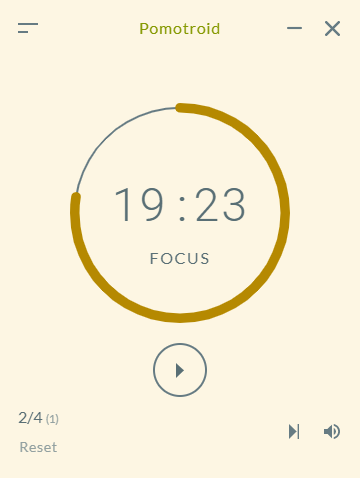
Red, orange, and yellow stimulate the brain and create a sense of urgency. If you struggle with procrastination or lethargy, a vibrant theme like Gruvbox or Monokai can act as a visual caffeine shot.
Dark Mode for Endurance
Best for: Long sessions, night owls, developers.
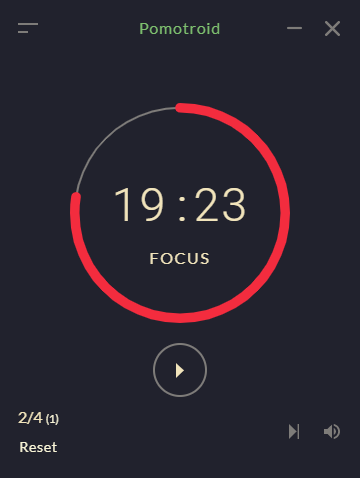
Reducing blue light emission helps prevent digital eye strain (DES). For users pulling all-nighters, themes like Dracula maintain high contrast for readability without the harsh glare of a white background.
Tip for ADHD Brains
Consistency is key. If you find yourself spending more time customizing the timer than using it, stick to a simple, low-contrast theme like Nord and don’t change it for a week. Minimizing visual novelty can help reduce distraction.
Officially Supported Themes
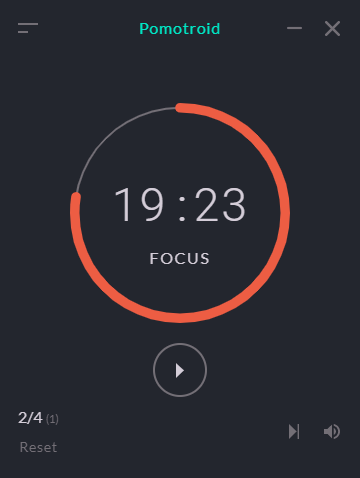
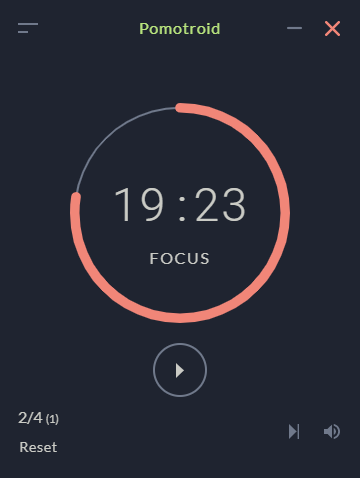
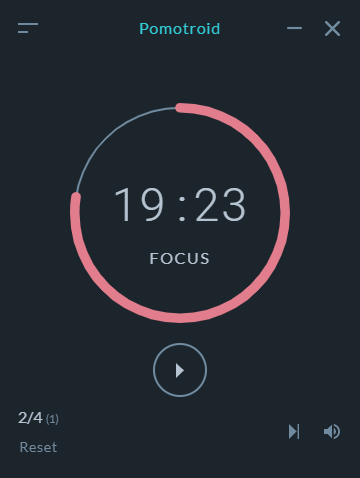
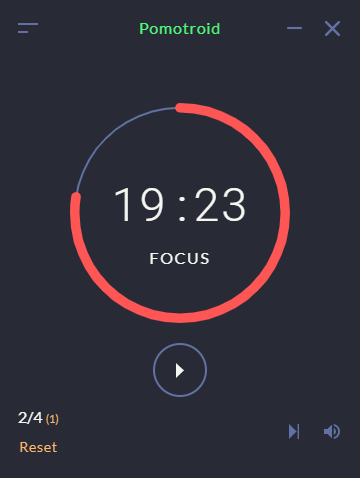
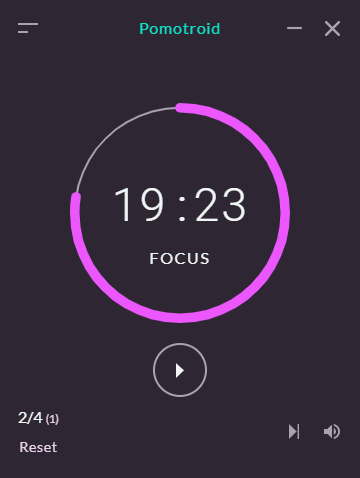
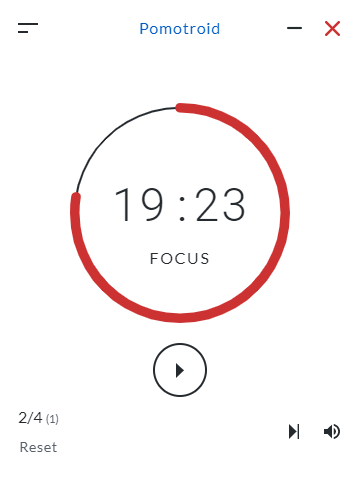
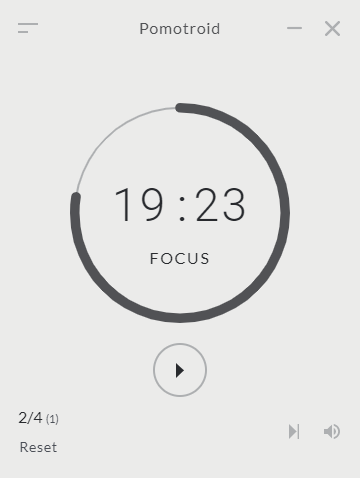
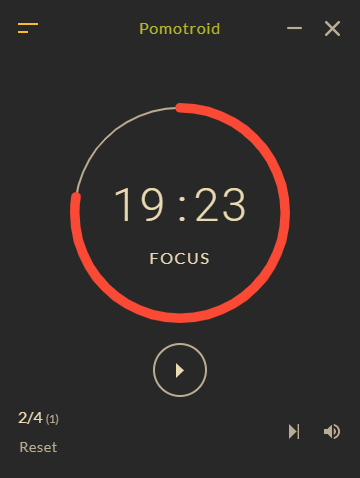
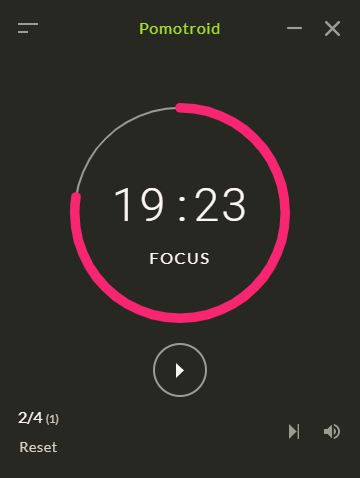
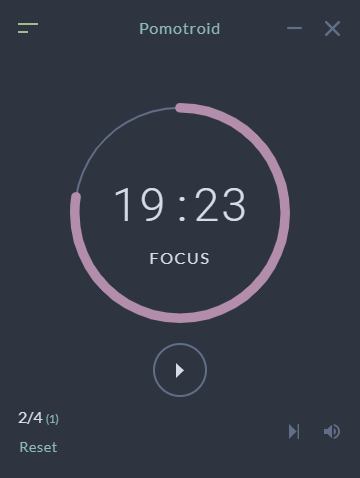
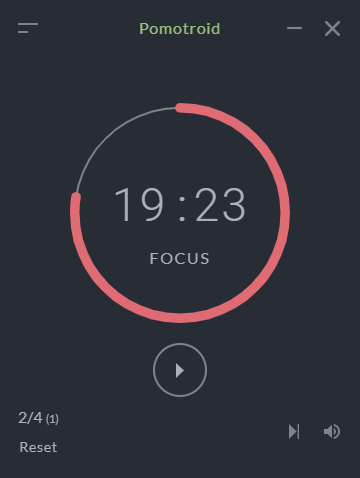
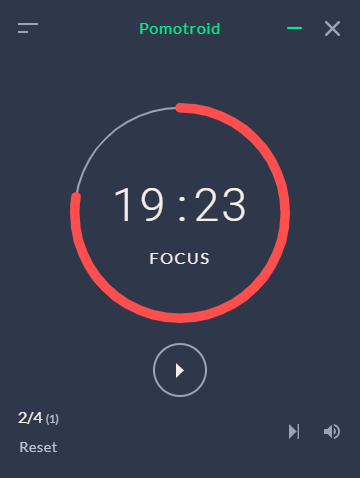
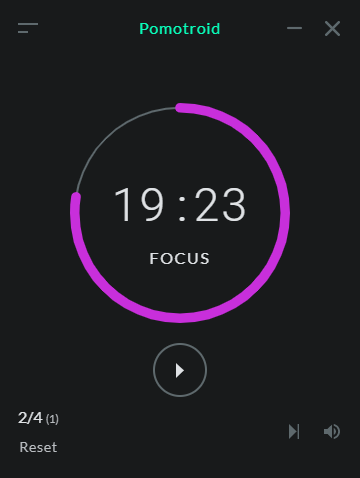
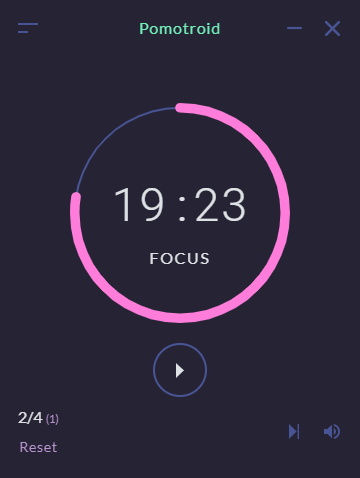
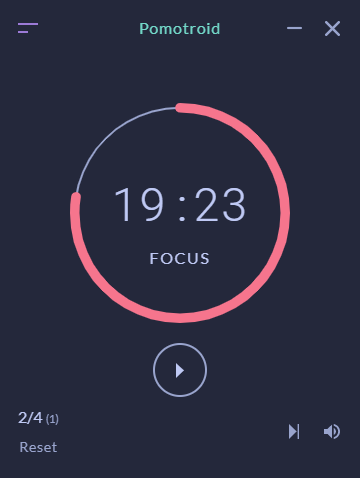
Pomotroid comes pre-installed with these popular color schemes. You don’t need to download anything—just select them in the Settings menu.
Custom Theme Library
Want something unique? Copy the JSON below to add these exclusive themes to your Pomotroid.
Copy the JSON code and save it as a .json file in your themes folder.
How to Add Custom Themes
Unlike built-in themes, custom themes live in their own individual JSON files. Follow these 3 steps to install them.
Open the Themes Directory
Pomotroid loads custom themes from a specific folder on your computer. Copy the path below and paste it into your file explorer address bar.
Create a New JSON File
Inside that folder, create a new text file and name it something like my-theme.json.
.json and not .txt. On Windows, you might need to enable “File name extensions” in the View tab to check this.
Open this file with any text editor (Notepad, TextEdit, VS Code) and paste the code you copied from the gallery above. Save the file.
Restart & Apply
Pomotroid only loads themes on startup.
- Completely quit Pomotroid (File > Quit).
- Open the app again.
- Go to Settings (or press
Ctrl/Cmd + ,). - Select your new theme from the dropdown menu!
Created a Masterpiece?
Did you craft a custom Pomotroid theme that matches your setup perfectly? Don’t keep it to yourself. Share your theme.json config with the community!
We regularly review the repository and feature the best submissions here.
Themes Troubleshooting
Want Beautiful Themes
Without Editing Code?
If messing with JSON files isn’t your thing, check out TickTick. It comes with 30+ stunning premium themes, white noise, and mobile sync built-in.
We are not affiliated with Pomotroid. Themes are community contributions.